
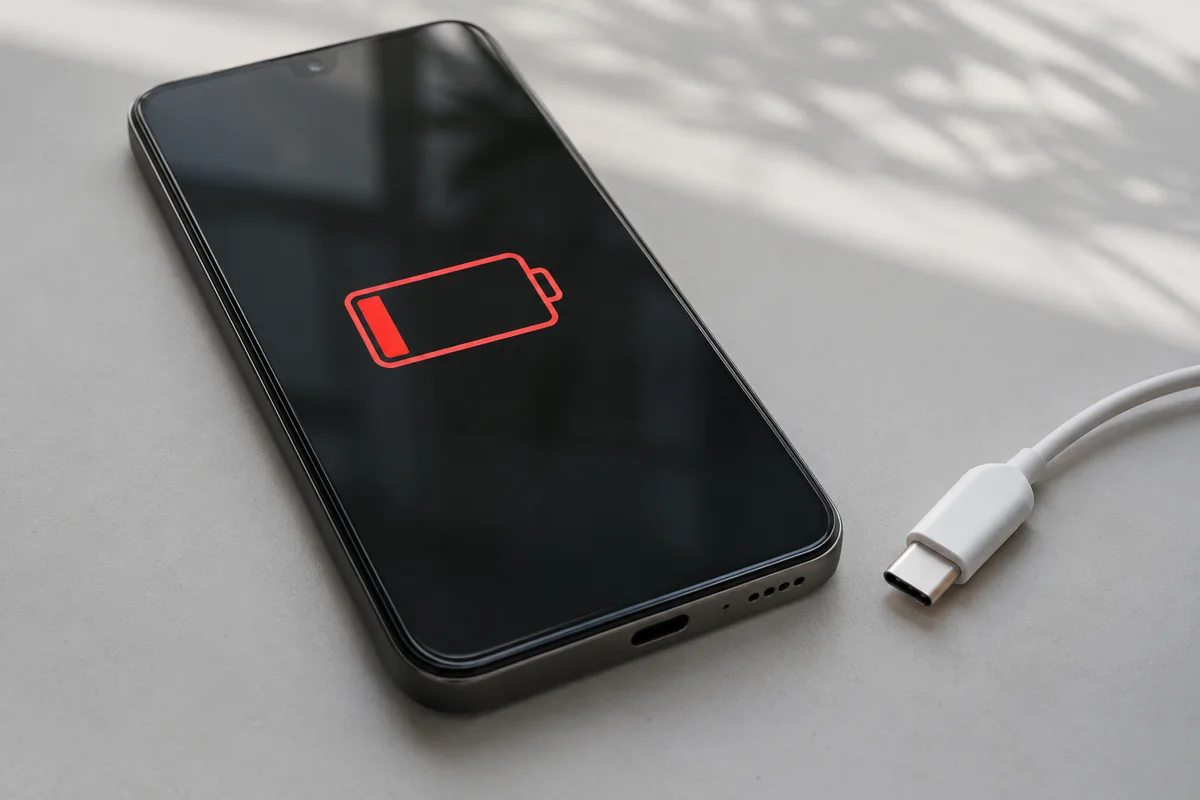
A phone that needs charging before the end of the day can be frustrating, especially when you rely on it for work, directions or family calls. But short battery life does not always mean the battery needs replacing. Start by checking what has changed and how the phone is using its charge.
Review battery usage, check the battery-health information available on your model, and look for a pattern. A busy app, a bright screen or a recent update can affect runtime. Persistent poor battery life or unexpected shutdowns are reasons to book an assessment. If the phone is swollen or the casing is separating, stop using and charging it and seek professional advice.
1. Work out when the battery drains
Think about a typical day before changing settings. Does the charge fall during video calls, while using maps, or when the phone is sitting unused? Did the problem appear suddenly, or has battery life gradually become shorter? Those are different starting points for an assessment.
Make a short note of the time, battery level and what you were doing. Comparing two similar days is more useful than comparing a quiet day at home with a day spent filming, navigating and making calls. Keep screenshots of the battery-usage screen so you can show the pattern later.
If the problem began just after an iPhone software update, Apple advises allowing a few days before checking again because update-related work can continue in the background. That observation applies to an otherwise safe, working device; it is not a reason to ignore swelling or unusual heat.
2. Check battery health, not just today's percentage
On an iPhone
Open Settings, then Battery, and look for Battery Health or Battery Health & Charging. The wording varies by model and software. Check maximum capacity and any service or performance message. Maximum capacity compares the battery with its capacity when new; it is different from the charge percentage in the status bar.
Use that information alongside your experience. A battery-health reading cannot explain every fault, and a phone that reports a reasonable capacity can still need investigation. Record any unexpected shutdowns or battery-related messages rather than making the decision from one number alone.
On a Samsung Galaxy
Samsung's Members app includes Phone diagnostics with a Battery status check. Open Samsung Members and look under Support for diagnostics; the route and labels can vary. Save the result and describe the actual runtime. If the app reports a concern or the phone repeatedly shuts down, arrange an assessment.
If you cannot find these options, include the full model and software version in your enquiry. You do not need to install an unfamiliar battery-testing app or buy a replacement part just to start the conversation.
3. Review apps and make a few practical changes
In the phone's Battery settings, review which apps used the most power. An app near the top is not automatically faulty: a long video call may reasonably account for much of that day's use. Look for activity that does not match how you used the phone.
Try modest changes that fit your routine:
- Use automatic brightness or lower a screen that is brighter than you need.
- Set a reasonable screen-lock timeout so the display does not stay on unattended.
- Review an unusually active app's permissions and background settings before restricting it.
- Try the phone's built-in Low Power or Power saving mode when you need extra runtime.
Samsung notes that Power saving and sleeping unused apps can reduce background activity. These controls have tradeoffs: check whether delayed notifications or limited background activity would affect an app you rely on. Keep the changes manageable so you can tell what helped.
Avoid changing every setting at once or immediately resetting the phone. First collect enough information to explain the issue. If a reset is later recommended, discuss backups and your data priorities before proceeding.
4. Think about heat and cold
Temperature can change battery behaviour. Apple explains that very cold conditions can temporarily shorten runtime or cause shutdowns, while excessive heat can permanently reduce battery life. That is useful context as Oakville moves into colder weather.
Do not leave the phone in a parked car or against a heater. Let a cold or hot device return to normal room conditions naturally. Avoid heating it with a hair dryer or trying to cool it in a fridge. If it repeatedly becomes unusually hot during light use, stop testing and ask for an assessment.
5. Decide whether to book a battery assessment
A useful repair enquiry describes the behaviour rather than prescribing a part. Tell us whether the phone lasts two hours or most of a day, whether it shuts down with charge remaining, and which checks you have already made.
| What you notice | What to do next |
|---|---|
| Short runtime on especially busy days | Compare battery usage on a similar day and review practical settings. |
| A service message or repeated shutdowns | Save the message and request a battery assessment. |
| The phone does not charge reliably | Describe the charging fault separately; a battery replacement may not address it. |
| Swelling or a separating screen or back | Stop using and charging the phone. Do not press it closed or open it yourself. |
Back up a working phone if it is safe to do so. Keep passcodes and passwords out of the online enquiry, and mention whether preserving files is your main priority.
For help in Oakville, see UrbanPlug's iPhone repair and Samsung repair pages or request a quote with the exact model and symptoms. If the issue is accepting a charge, start with Phone not charging? What to check before booking a repair. If you are weighing the cost against another device, our repair or replace guide can help frame that decision.